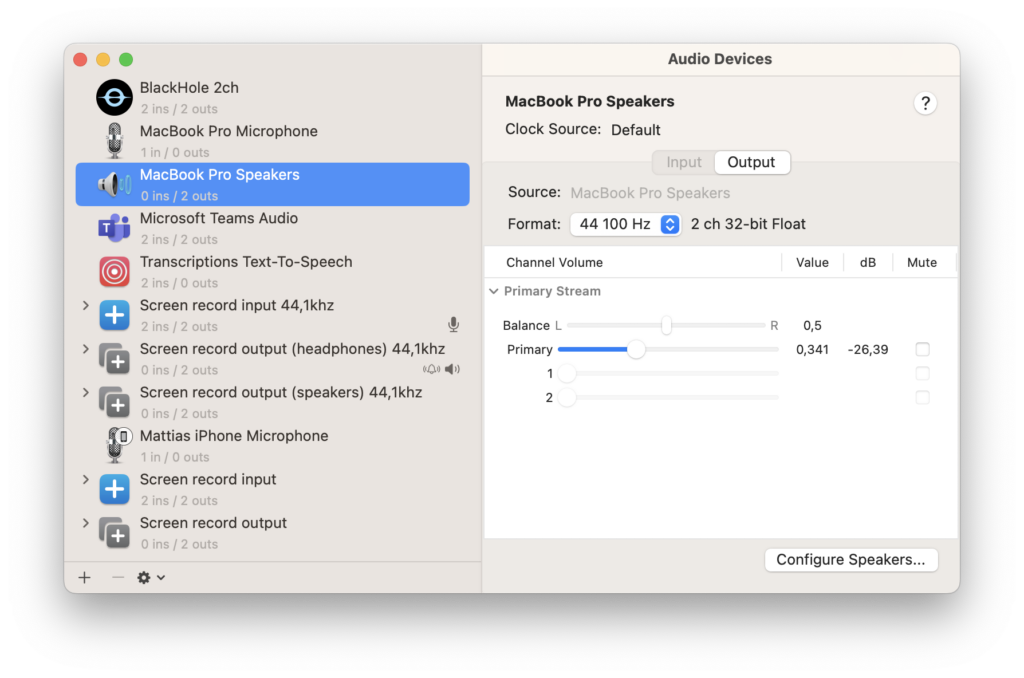
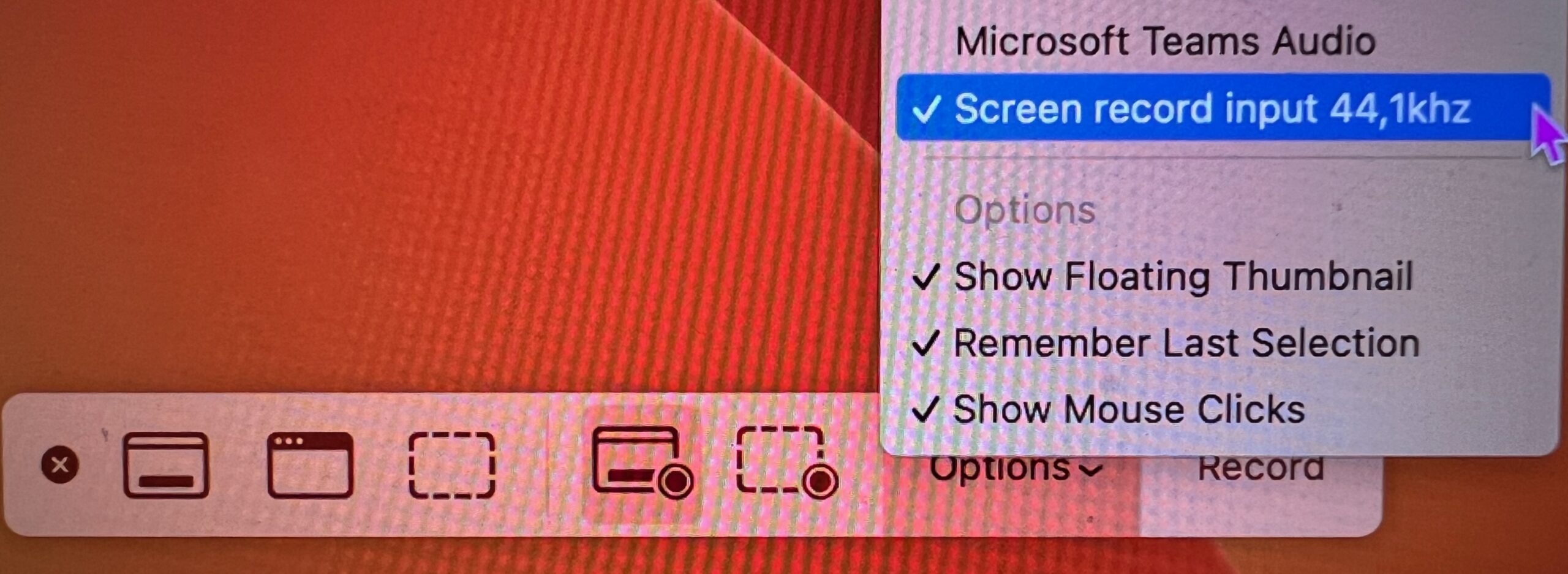
Make a screen recording with internal audio.
UPDATE 2026-08-23
This is now built in to Apples own screen recording tool (shift+cmd+5) with macOS 27 Golden Gate. No need for BlackHole.
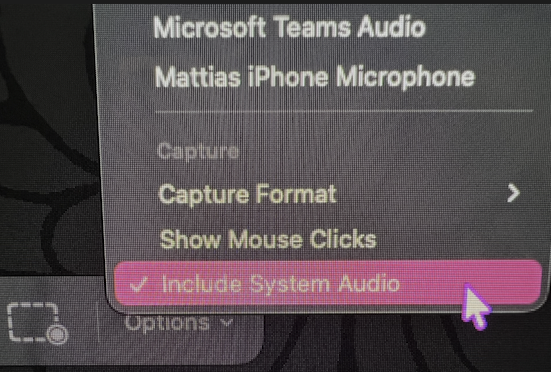
Just check “Include System Audio”
Install and configure (for older versions of macOS)
Install BlackHole
Launch Audio MIDI Setup
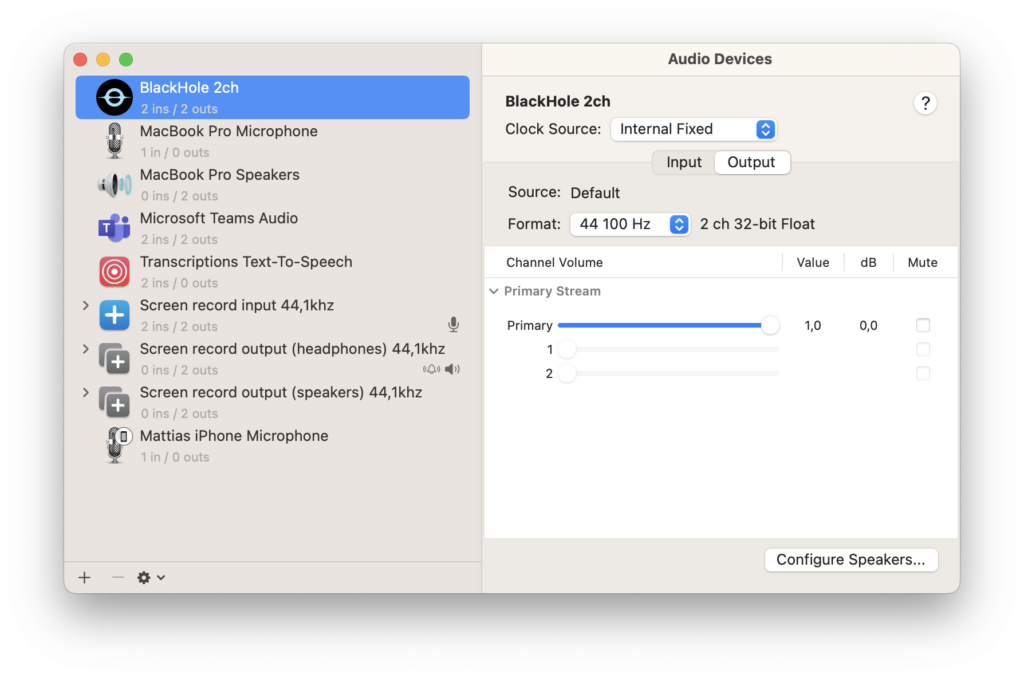
Double check that BlackHole Primary volume is set to 1,0
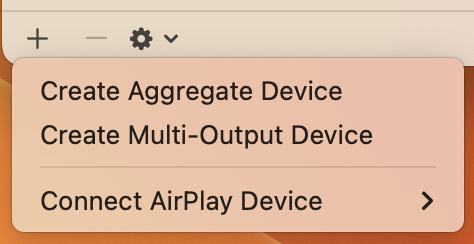
Click the + sign and Create Aggregate Device
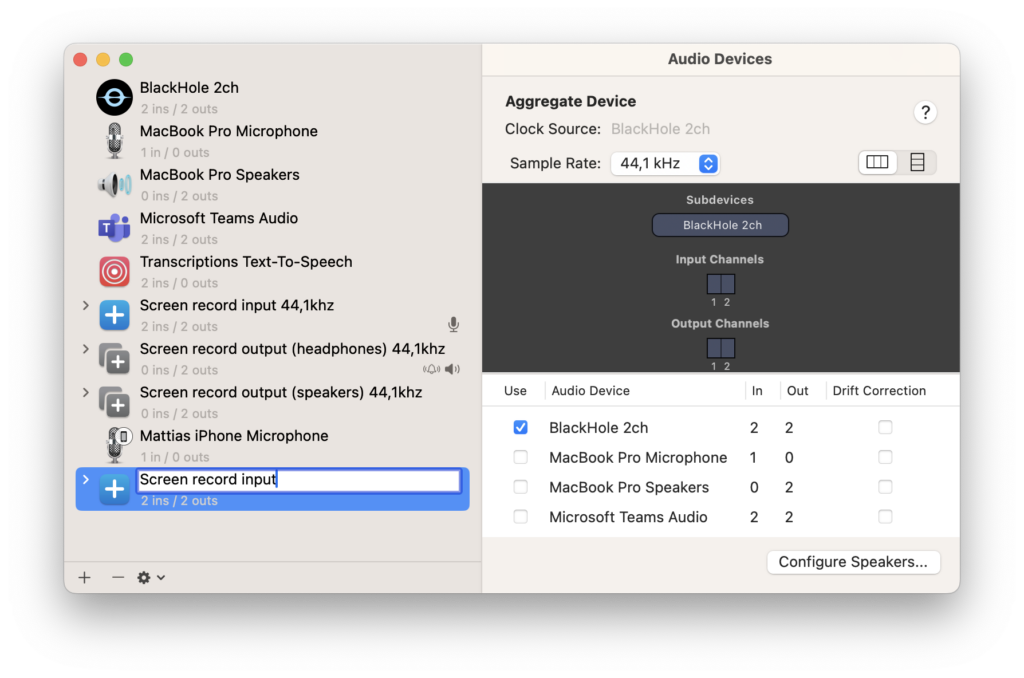
Rename it to Screen record input and select BlackHole 2ch
Create Multi-Output Device
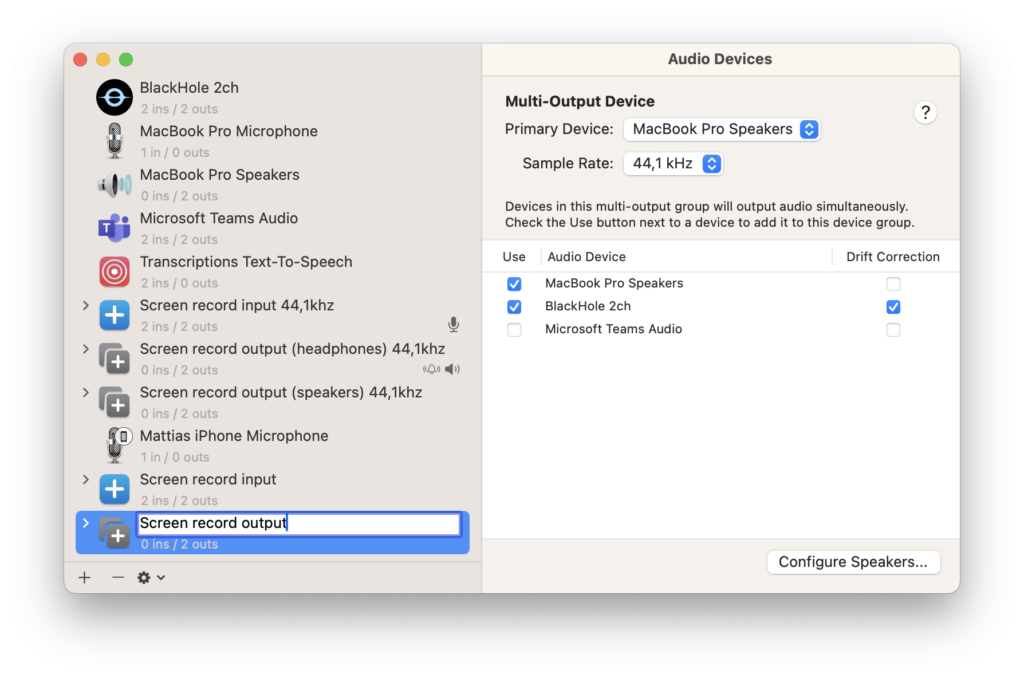
Rename it to Screen record output, select MacBook Pro Speakers and BlackHole 2ch. Set Primary Device to MacBook Pro Speakers.
Record video
Press Shift + Command + 5 to start the screen recording tool.
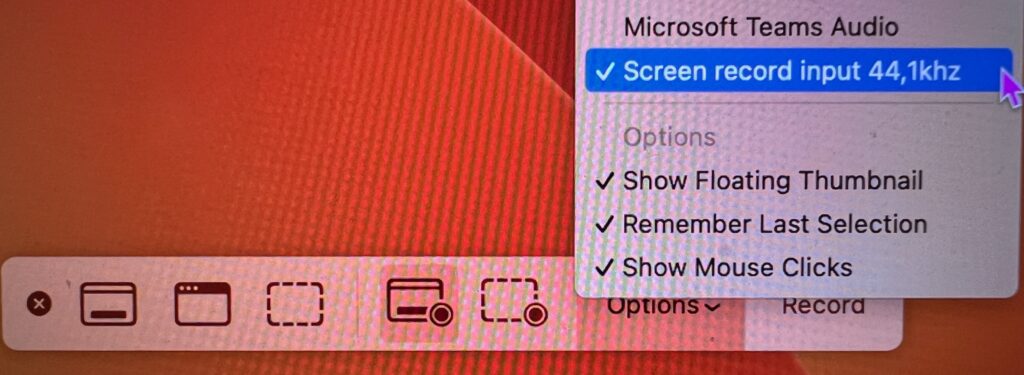
Select Screen record input as your microphone
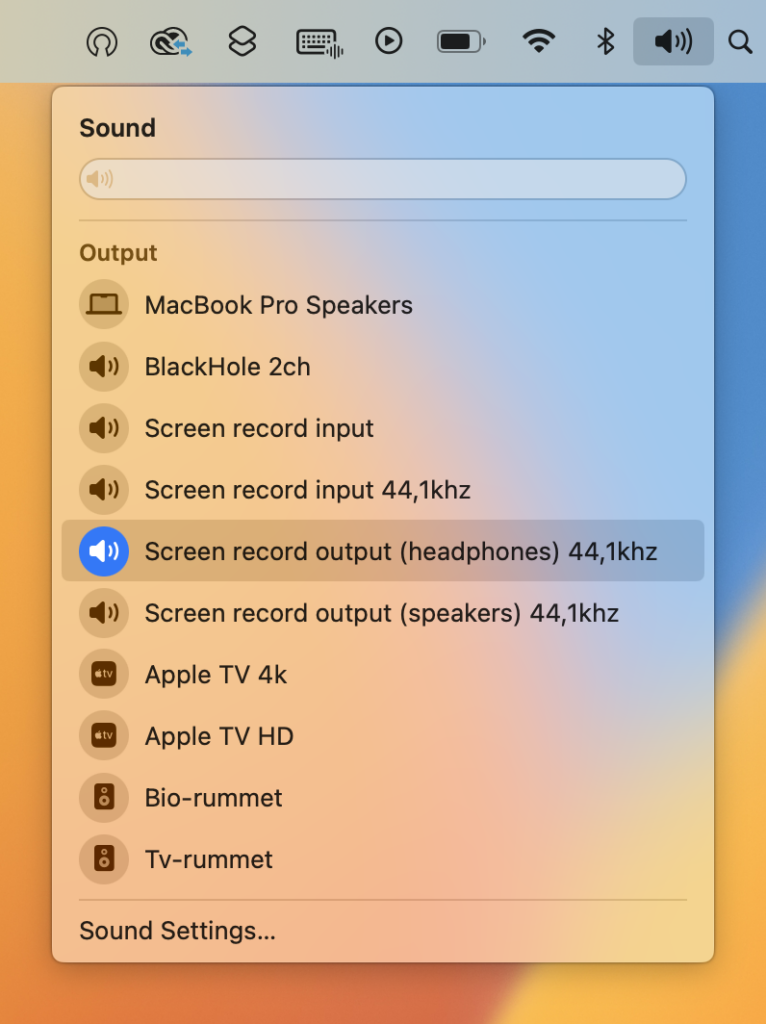
Select Screen record output as your audio device.
Change speaker volume
You can not change the speaker volume the normal way so you have to use Audio MIDI Setup to adjust the volume.